Tasks errors
|
Since 4.10
This functionality is available since version 4.10.
|
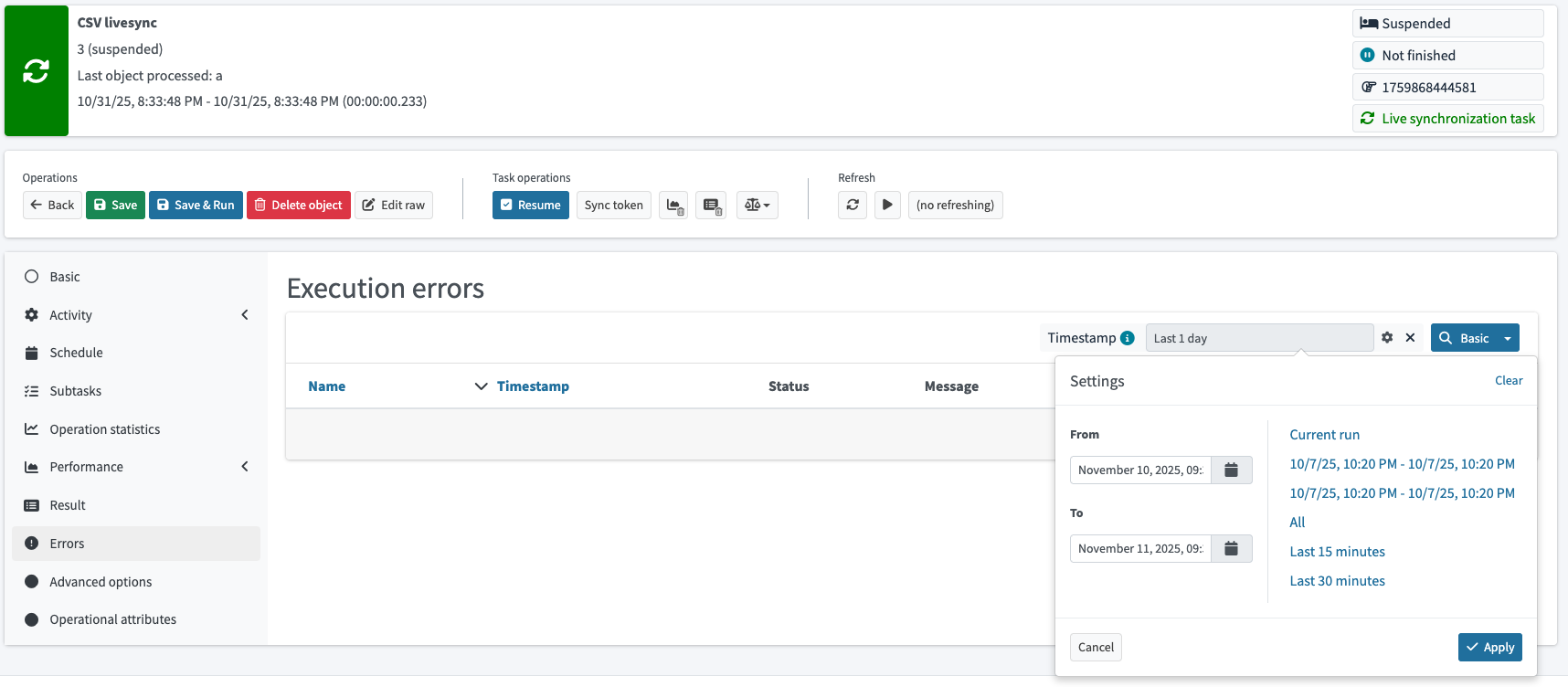
MidPoint user interface allows searching for errors for specific task run realization. Search widget can also list all available task run realization history for given task.
Figure 1. Task run errors search widget displaying last three task run intervals
To achieve this, new data structure taskRunRecord is stored in task object when starting new run realization.
This structure contains following data:
-
taskRunIdentifier -
runStartTimestamp -
runEndTimestamp
taskRunIdentifier is also stored in each operationExecution in objects processed during that task run.
To avoid operationExecution count explosion, old record it’s now replaced with new one if error is the same.
This has to take into account new taskRunIdentifier, and it’s replaced only if taskRunIdentifier is the same.
To further limit accumulation of taskRunRecord in the task and operationExecution in objects, new configuration options was created in SystemConfigurationType.
Maximum number of operationExecution items in object is by default 5, and maximum number of records per task is 3.
Example of cleanup policy configuration
<systemConfiguration xmlns="http://midpoint.evolveum.com/xml/ns/public/common/common-3">
    <!-- other configuration ommitted for brevity -->
    <cleanupPolicy>
        <simpleOperationExecutions>
            <maxRecords>5</maxRecords>
            <maxRecordsPerTask>3</maxRecordsPerTask>
        </simpleOperationExecutions>
        <complexOperationExecutions>
            <maxRecords>5</maxRecords>
            <maxRecordsPerTask>3</maxRecordsPerTask>
        </complexOperationExecutions>
    </cleanupPolicy>
</systemConfiguration>
Search errors with Audit Log Viewer
Alternatively, you can also search for errors in tasks using the Audit Log Viewer. In fact, audit log can give you more complete information about errors than the actual task errors listing described above because audit log does not trim previous records for repeated errors of the same kind.
-
Get the task OID.
In GUI, this is available in the URL of a task details page, e.g.,87843d58-76b8-11e2-ae3e-001e8c717e5c. -
Go to Audit Log Viewer in the application’s left-side menu.
-
Switch Search in the right upper corner to the Advanced mode.
-
Search for execution errors for the task using a query.
For example, the following query will search execution errors for the task with OID87843d58-76b8-11e2-ae3e-001e8c717e5cthat occurred after January 1, 2026:taskOID = "87843d58-76b8-11e2-ae3e-001e8c717e5c" and eventStage = "execution" and outcome != "success" and timestamp >= "2026-01-01"" Figure 2. Example of an advanced search query for task execution errors in the Audit Log Viewer
You do not have to specify a timestamp in the query. It is used in the example to avoid filtering through all records in the audit log which, depending on the number of records, could be more resource demanding.
-
Review the error detail by clicking the link in the Target column.
See also
-
Related issue MID-10411
Was this page helpful?
YES
NO
Thanks for your feedback